Slack to-do list: Later is now To-dos, and what works on the free plan
Slack replaced Later with a To-dos tab in October 2026. Here is where your saved items went, how to build a Slack to-do list, and which task tools Slack's own pages say need a paid plan.
Nihar Rout · · 6 min read · 6 views
A Slack to-do list now starts in the To-dos tab, which began replacing Later in October 2026. According to Slack's help pages, To-dos and reminders are available on every subscription. Lists need a paid plan, and Slack's own pages disagree about canvases. Below: where your old Later items went, and which tool fits which job.
Where your old Later items went
Slack's Later is now To-dos article says the To-dos tab is replacing Later in the sidebar and that the change is "rolling out gradually," so you may not see it yet. Slack split the old items by one rule: whether they had a reminder.
- In progress, with a reminder: converted into to-dos, shown at the top of the list.
- In progress, no reminder: moved to Saved.
- Archived: all moved to Saved.
- Completed: stay in To-dos, listed after the in-progress ones.
Saved is a separate place on the Home tab. Per Slack's Save messages and files for later article, saved items are visible only to you, and on desktop a clean-up icon can move items from Saved into To-dos. If an item landed in the wrong place, the To-dos article describes a Move to saved action in one direction and Move to to-dos in the other.
The five ways to build a Slack to-do list
Zapier's five ways to make a Slack to-do list, dated October 28, 2026, covers To-dos, Lists, canvases, reminders and integrations. We read the article text on October 29, 2026 and found no mention of which Slack plan each method needs. That gap matters, because Slack's own pages sort these tools by plan.
| Tool | Best for | Plan, per Slack's pages | Catch |
|---|---|---|---|
| To-dos | Your own action items | All subscriptions | Personal; the help page describes no assignees |
| Saved | Messages to reread | The article names no plan | Private, no due date |
| Reminders | A nudge at a set time | All subscriptions | Guests cannot set channel reminders |
| Canvas checklist | A shared checklist | Pages disagree | See the free plan section |
| Lists | Tracking team work | Paid subscriptions | Read-only after a downgrade |
The plan column comes from the "Who can use this feature?" line at the foot of each Slack help article, read on October 29, 2026; the Saved article has no such line. Slack changes these pages, so check the live ones before you set up a workspace around them.
Turn a message into a task
The fastest path is one click on the message itself. Slack's help article gives the steps for the To-dos tab:
- Hover over a message in any conversation.
- Click Add to-do. On mobile, tap and hold the message, then tap To-dos.
- Open the To-dos tab in the sidebar to see the new item.
- Hover over the to-do and click Edit reminder to give it a due date.
In our view step 4 is the easiest to skip. Slack says creating a to-do "doesn't set a reminder by default," and a reminder is what triggers a notification in Activity. A to-do without one is a list entry you must remember to open.
You can also write your own item. Click the To-dos tab, click Add To-do at the top right, type the task and optionally click Add reminder.
Slack reminders: what /remind repeats and what it cannot
Slack's Set a reminder article lists the page as available on all subscriptions. For a channel, type the command in the format `/remind [#channel] [what] [when]`; Slack's example is `/remind #marketing-team to submit expenses every Thursday`. Slack then posts the reminder text in that channel at the chosen time.
Three limits from that page are worth knowing before you rely on it:
- Repeats are by day, not by interval. Slack says you can repeat by the day (for example every Monday) but not in time increments such as every hour.
- Channel reminders cannot be edited. Delete and recreate them; type /remind list to see the ones you can delete.
- Guests cannot create channel reminders.
By default, a reminder set for a day such as tomorrow or every Tuesday arrives at 09:00 in your time zone. You can change that default under Preferences.
Where the free plan stops: Lists, canvases and the 90-day window
Slack's Lists feature page answers the plan question directly: "Lists are included in all paid Slack subscriptions." The free-version limits article adds that when a workspace downgrades, lists and canvases are converted to read-only and you cannot create new ones.
Canvases are where Slack's pages disagree. The Use a canvas in Slack article ends with "Available on paid subscriptions." Slack's canvas settings article says "Channel and direct message (DM) canvases are available on all subscriptions, while standalone canvases are only available on paid subscriptions." We can't tell you which reading is current, so test on your own free workspace before you plan around a canvas checklist.
Two more free-plan limits from the same limits article touch any to-do habit. Free workspaces see only the most recent 90 days of message and file history, and data older than one year is deleted, which we cover in our post on Slack free plan message history. Free workspaces are also limited to 10 third-party or custom app installations, which caps the integration route. We have not checked what a to-do does once the message behind it passes out of the 90-day window, so copy anything important into the to-do text itself.
When a Slack to-do list is not enough
In our view, To-dos and reminders suit one person tracking what others asked of them. They have no assignees, no shared view and no projects, and Zapier's own write-up calls canvas checklists less like true to-do items than the ones in a task app with reminders and assignees.
If your team needs owners and due dates on shared work, that is a task manager's job. As of October 29, 2026, Upfynd lists 1,137 products in Task & Project Management. Three listed products that sit next to Slack in many stacks: Todoist, Asana and Any.do. Upfynd's listings describe them as, respectively, a task manager that takes tasks in plain language, a tool to plan team projects, and a to-do list with calendar and reminders. We have not compared them for this post, so read each product's own pricing before choosing.
The chat side is listed too: Slack sits among 333 products in Messaging & Chat on Upfynd as of the same date. If your to-dos are mostly notes you reread, the Notes & Knowledge category may fit better than a task app.
Practical next step: open the To-dos tab, check that your old reminder items converted, and move any unreminded ones you still need from Saved with the clean-up icon.
Frequently asked questions
Does Slack have a to-do list?
Yes. Slack began replacing the Later tab with a personal To-dos tab in October 2026, rolling out gradually. You add a message as a to-do by hovering over it and clicking Add to-do, or type your own item. Slack's help page lists it as available on all subscriptions.
Where did Later go in Slack?
The To-dos tab replaces Later in the sidebar. Slack says old in-progress items with a reminder became to-dos, in-progress items without one moved to Saved on the Home tab, archived items moved to Saved, and completed items stayed in To-dos. The rollout is gradual, so some workspaces still show Later.
Is Slack Lists free?
No. Slack's Lists feature page says lists are included in all paid Slack subscriptions. Slack's free-version limits article says that when a workspace downgrades, existing lists become read-only and new ones cannot be created. As of October 29, 2026, the free plan does not include Lists.
How do I turn a Slack message into a task?
Hover over the message and click Add to-do, or tap and hold it on mobile and tap To-dos. Then open the To-dos tab, hover over the item and click Edit reminder, because Slack does not set a reminder by default. For a team task, use Add to list, which needs a paid plan.
How do I set a recurring reminder in Slack?
Type /remind followed by who, what and when, naming the channel or yourself and ending with a day such as every Thursday. Slack says reminders can repeat by the day, for example every Monday, but not in time increments like every hour. Channel reminders cannot be edited; delete and recreate them.
Products in this article
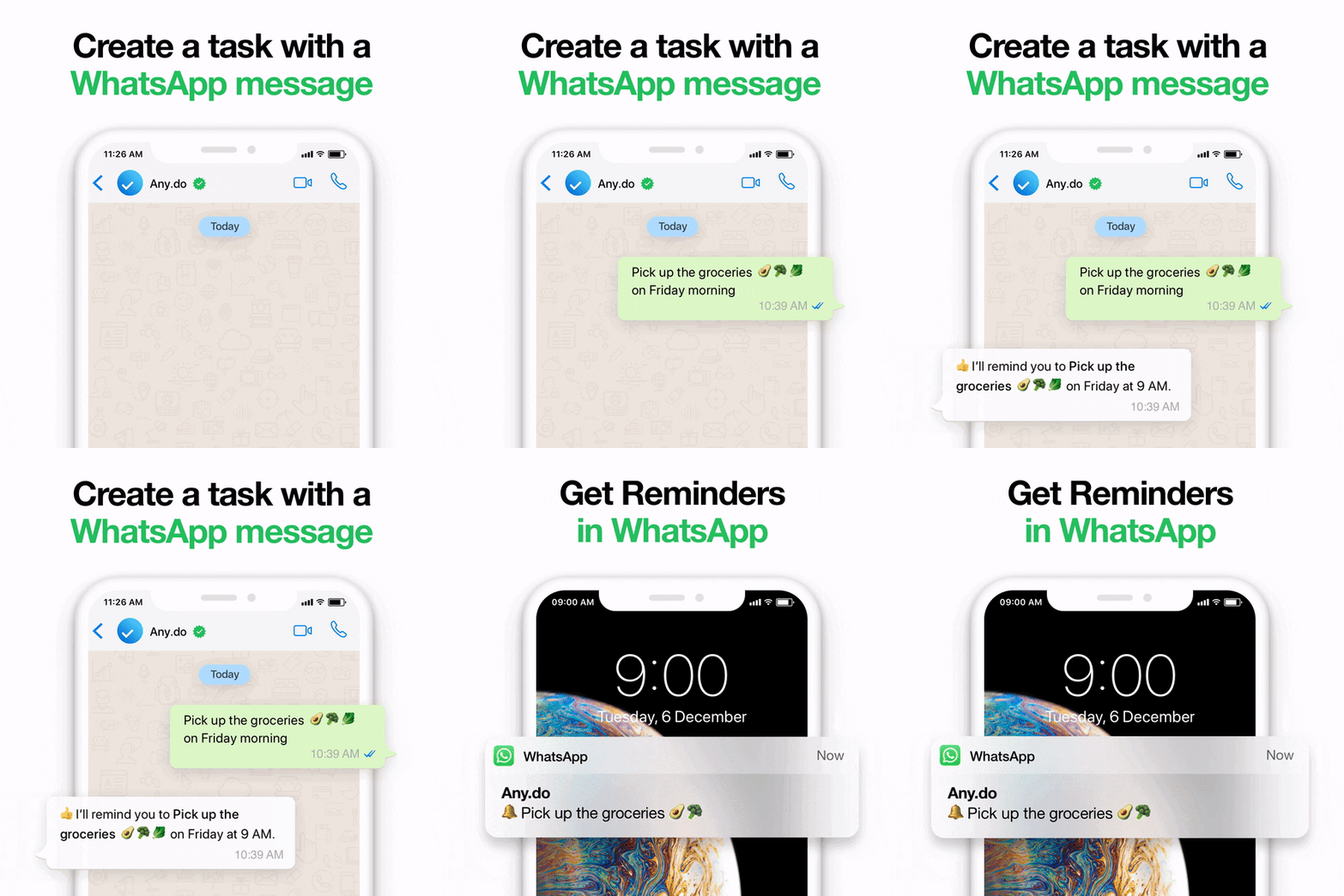 Any.doTo-do list, calendar and reminders for personal, family and team tasks
 AsanaPlan team projects, track tasks and hit deadlines, with AI workflow automation
 SlackTeam chat with channels, huddles and no-code Workflow Builder automation
 TodoistA task manager that takes tasks in plain language and schedules them
About the author

Nihar Rout
CEO & Co-founder